
Guidance-Driven Processing (GDP)
Tell me your sorrows.
― Clifford D. Simak, "Crying Jag"
This is an architectural approach where the file transformation logic is defined directly within its structure using `@guidance` meta-tags. Our tool, Machai Ghostwriter by Machanism, scans these "marginalia" (inline comments) and triggers the corresponding processing pipelines.
Introduction
When a developer faces repetitive tasks, he writes code to automate them. However, some tasks are not so easy to program, so usually the instructions for this work are described in natural language on the appropriate resources and performed manually. And this can be sad.
Now there is an opportunity to solve these sorrows with the help of what is commonly called artificial intelligence. This is a powerful tool, but, with all due respect, let's lower our expectations and not expect it to do everything for us. Let's be realistic, and maybe a little pessimistic. Now, AI is just a high-quality automatic formatter of your thoughts with a powerful improvement function based on popular information on the Internet.
It will perfectly enrich your text with well-known facts, explaining what you did, giving various examples, adding references and explaining the logic of the code you wrote. This is exactly the routine that you always don't have time for when you are trying to create something new and you are required to explain something that is already publicly available. But what is new and what the model doesn't know yet, you must describe yourself, otherwise nothing will work.
Guidance-Driven Processing reimagines file transformation by embedding execution directives directly into the context of your files. Writing @guidance tags are like placing strategic notes in the margins of a page-leaving precise instructions that are later parsed and executed. This workflow can be carried out manually or accelerated through AI, leaving you only with the final verification of the result. This approach perfectly mirrors the role of a true "ghostwriter" (a literary assistant): highly skilled and erudite yet always acting as an assistant to execute your vision, while you remain the definitive author.
In-Context Guidance
Unlike interactive tools (chats), this is exclusively about processing files that already contain tasks described in natural language that need to be performed. This can be anything: writing documentation in code, creating page content for a project website, or covering code with unit tests.
In this paradigm, your instructions, written in plain language, become "source code" that the system interprets and executes. This allows you to automate and optimize file operations with extensive customization options.
Since we use these instructions as code, it is important to treat them with the same care as you would traditionally source code. Instructions should be stored in a structured and maintainable format within the project, ensuring they are versioned, tested, and easily accessible for future updates or collaboration. This approach helps maintain consistency, traceability, and quality in your workflows.
These instructions are placed in comments and do not directly affect the behavior of the program during execution. The execution of the instructions occurs, when necessary, for example, after a change of code. And for this, AI is planned to be used. If you wish, you can skip the processing stage with artificial intelligence and use the saved instructions as guidelines for manual work. However, the process becomes much more efficient if you use specialized tools and focus on testing the results of their work.
Guidance Tag
To recognize embedded instructions, we mark them with a marker tag: `@guidance` and place them in comment blocks to eliminate their impact on the source code or data, so they can only be used in files that support comments. For example, text files like `*.txt` cannot contain such tags. The exception is the file `@guidance.txt`, which is completely processed as an @guidance tag for the folder in which it is located. The presence of guidance tags does not affect the project in any way, does not entail any dependencies, and they can be added to any project.
Here are examples of using the tag for different file types:
- Markdown, HTML and XML Files
<!-- @guidance:
**Important:** If any section or content already exists, update it with the latest and most accurate information instead of duplicating or skipping it.
1. **Project Title and Overview:**
- Provide the project name and a brief description based on `src\site\markdown\index.md` content summary.
- Add `` before the title.
- Add `[](https://central.sonatype.com/artifact/org.machanism.machai/machai)` after the title as a new paragraph.
…
-->
- Java and TypeScript Files
/*@guidance:
 * Create or update javadoc of AIFileProcessor class.
 * Class javadoc description should describe supported functionality and provide examples to use it.
 * If the method used as Javadoc documentation is not public or protected, the method name should not be specified.
*/
- Python Files
'''
@guidance:
- Follow PEP 257 for docstrings.
- Document all public classes, methods, and functions.
- Keep comments up to date and clear.
'''
- Folder Level Guidance
In the project root directory, ensure the following files are present and properly created:

**LICENSE.txt**
   - Include the full text of the project's license.
   - If the license file is missing, create it using the license type defined in the pom.xml file.
   - Ensure the license terms are accurate and up to date.
   - Use `Copyright 2026 Machanism.org`
Files To Process
To process files, you need to specify a project folder and a scan path. The project folder should point to the location of the project (or multiple projects) you want to process. The scan path determines which files in the project should be analyzed for `@guidance` tags before taking further action on them.
The scan path is specified as a relative or absolute path to a file or folder; you can also use regular expressions (regex) or glob patterns.
The scan folder determines the specific folder from which the file scanning and analysis begin. This option allows you to focus the process on only a specific part of your project, providing flexibility and control over which files and subdirectories are involved in the process.
The application searches for files that need to be processed without using AI.
Only files that contain `@guidance` tags are taken for processing. A separate processing session with its own context is created for each of them, so the context window is formed only for the current file being processed. The responsibility for determining the files to be processed is assigned to the application, and AI is usually not involved in this. The application also recognizes the structure of the project and applies file processing considering which module they belong to. This allows you to scan branched projects with many modules.
Processing Sequence
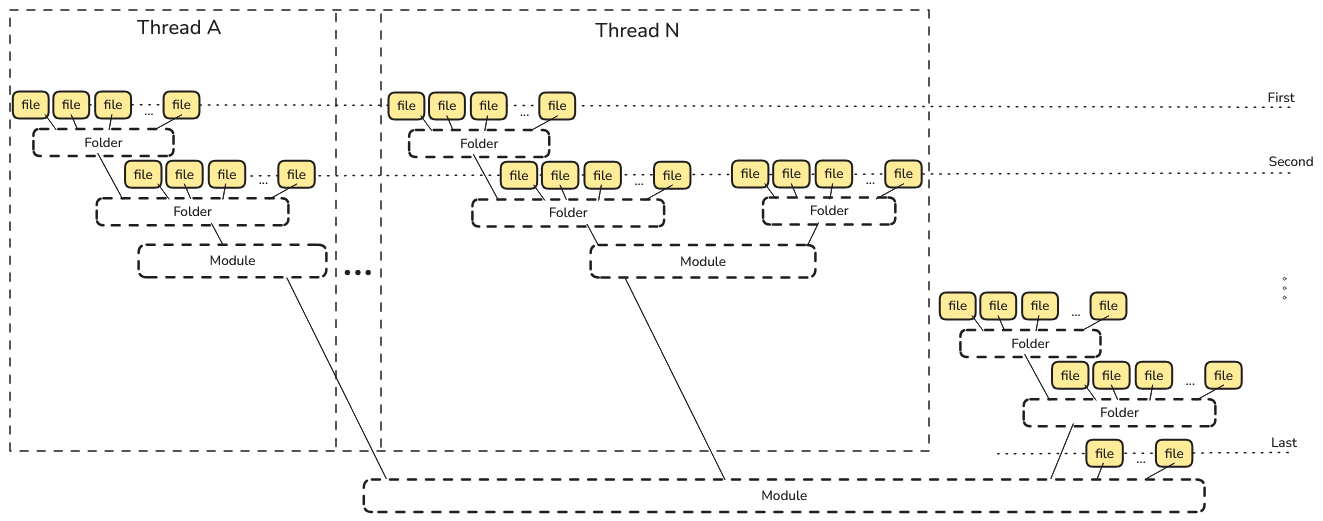
All project files that match the scan path are sorted based on their depth (path length). Scanning starts with the files that have the largest number of subfolders.
The order of file processing should be considered if files located closer to the root of the project use information from files located deeper in the structure.
If the project has child modules, they are processed before the files of the main project: sequentially (in the order they are declared in the project) or in parallel (if multithreading is enabled).
In addition, it is possible to run the application under the control of third-party build systems, for example Maven in per-module mode. In this case, the order of module processing will be determined by the dependencies in the project.
After processing all modules, the application proceeds to processing project files.
Using GenAI Services
The model used to process files based on built-in instructions is specified separately and their choice determines how high-quality and expensive this process will be.
Functional Tools
For our "literary slave" to be able to perform actions on files, a set of built-in functional tools is used. It is thanks to them that GenAI interacts with the file system, builds a project, runs tests, and even goes online. For file processing purposes, the following are used:
- Inspecting the project and files (structure navigation and search).
- Modifying files (writing, editing, and auto-replace).
- Executing commands and working with logs (building a project, running tests, and analyzing results).
- Project context and metadata (understanding the structure and relationships between modules).
Important security note: Tools that modify files, execute system commands, or make external network requests are used only when your task directly requires it. All these actions must be strictly controlled by your settings.
You also could create and add any of your own tools to effectively solve your own tasks, or by limiting their use by specifying only those that are allowed.
Usage Examples
Guidance tags are great for automatically synchronizing related data, whether it's in-code documentation, project documentation, or writing unit tests. A prime example of Machai Ghostwriter is the Machai project from Machanism. Here, guidance tags are used in many files to automatically generate and update code documentation and configurations. Machai is an open-source project that focuses on implementing code that provides the required functionality. Writing documentation is a secondary process, but at the same time extremely important, as it is needed by a third-party user to work with the project. However, this is not just about the human user. The project also creates specialized library descriptions (bindex) to provide context when using AI for automatic code generation. In this case, automatic intelligent generation of In-Code documentation becomes a responsible step, in which guidance tags define the information that will be used for code generation.
Machai Ghostwriter
Let's consider an application that supports the above principles - Machai Ghostwriter. It is a lightweight Java application that requires a Java 8 JVM to run, but for optimal performance, it is strongly recommended to use Java 17 or later.
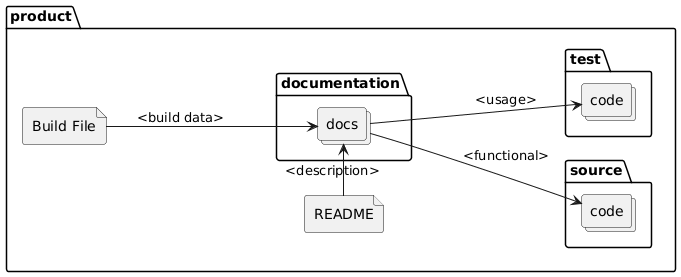
Machai Ghostwriter is designed for use in CI/CD pipelines, but it can also be run as a CLI tool.
The Machai project also has a Maven plugin for running Ghostwriter, which makes it extremely convenient for Maven projects.
The JAR file distribution with all the necessary libraries can be downloaded from SourceForge or used as a Maven plugin for Ghostwriter as a dependency: org.machanism.machai:gw-maven-plugin. You can also clone the Machai project if you plan to contribute to its improvement.
How To Use
To start processing files, you only need to specify the path to the project and the scan path - no other parameters are required (except for the mandatory settings for accessing the GenAI service and the model used). All the directives that need to be executed are already contained in the files.
It looks like this:
java -jar gw.jar
or
mvn gw:gw
If there is a need to narrow down the list of processed files, you should add the scan path:

java -jar gw.jar "glob:\*\*/\*.md"
or
mvn gw:gw -Dgw.path=glob:\*\*/\*.md
or the configuration is set in the plugin.
The specific AI provider and model are specified via the gw.model parameter, which applies to all files. If you need to use different models for different paths, you should start processing for each of them separately.